
Instant User Consent
Suitable for: Organisations that allow users to approve "low-risk" applications from verified publishers on their own.
-
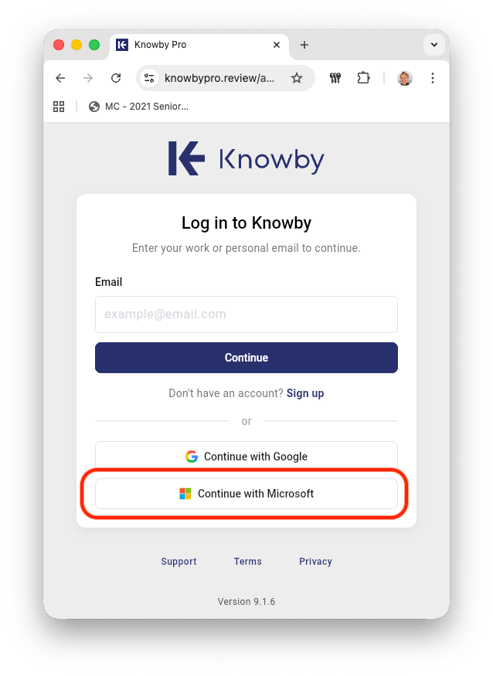
Start the Login: Navigate to the Knowby sign-in page and select "Sign in with Microsoft".
-
Authenticate: Enter your work or school email and password.
-
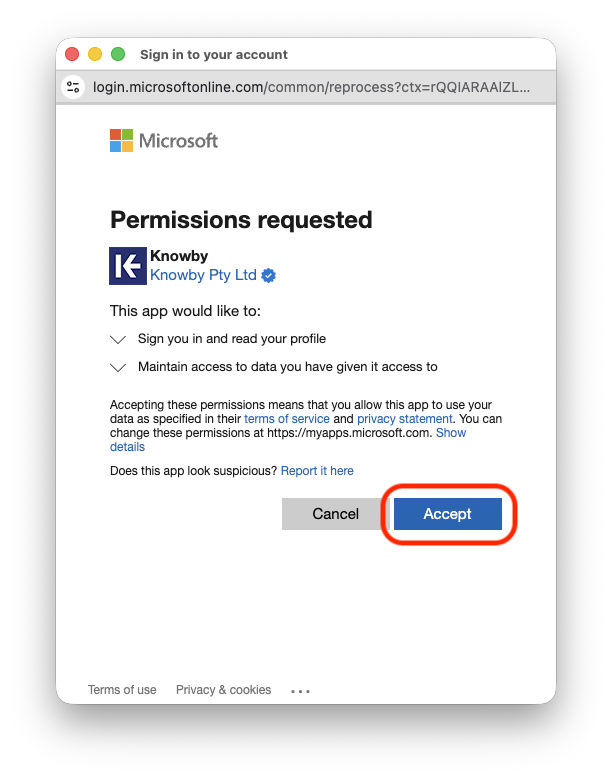
Review Permissions: A "Permissions requested" window will appear. The blue tick next to Knowby Pty Ltd will show that Knowby is a Verified Publisher.

-
Accept: Review the requested permissions (e.g., "Sign you in and read your profile"). If you agree, click Accept.
-
Success: You are now logged in. Knowby is now automatically added to your company's list of "Enterprise Applications," and you won't be asked to consent again.
Admin-Requested Access
Suitable for: Highly secure environments where user consent is disabled, or for IT Admins who want to authorise Knowby for the entire company at once.
Option A: The "Request Approval" Workflow
-
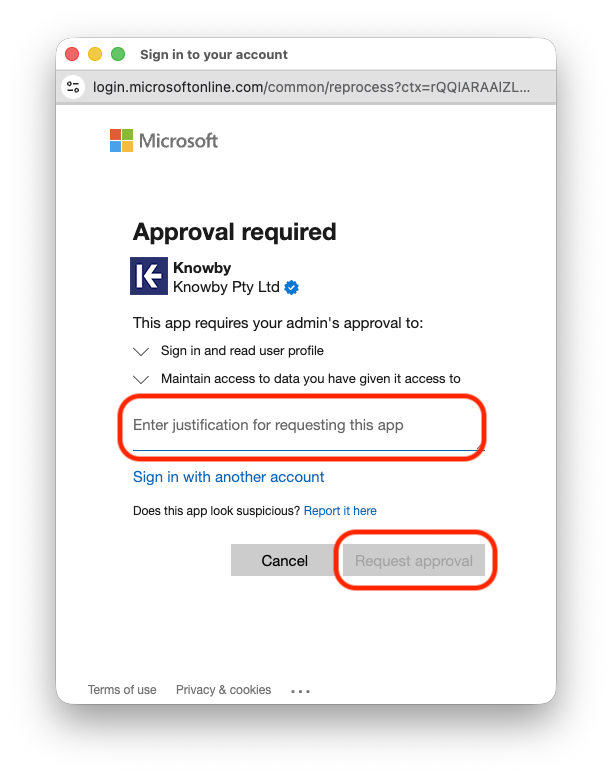
If you try to sign in and see a screen saying "Approval Required," follow these steps:
-
Justify: Enter a brief reason for needing the app (e.g., "Required for training documentation").
-
Request: Click Request approval. This sends an email notification to your IT Admins.
-
Wait: Your admin will review the request. Once they click "Accept," you will receive an email confirmation and can then sign in normally.
Option B: Proactive Admin Authorisation (Recommended)
To avoid individual user requests, an IT Administrator can grant Tenant-Wide Consent. This "pre-approves" Knowby for every employee in the company.
-
Admin Link: Your IT Admin should click the following link to authorise the app directly:
https://login.microsoftonline.com/common/adminconsent?client_id=41209c68-e499-4e07-bf11-a53431e00bed
-
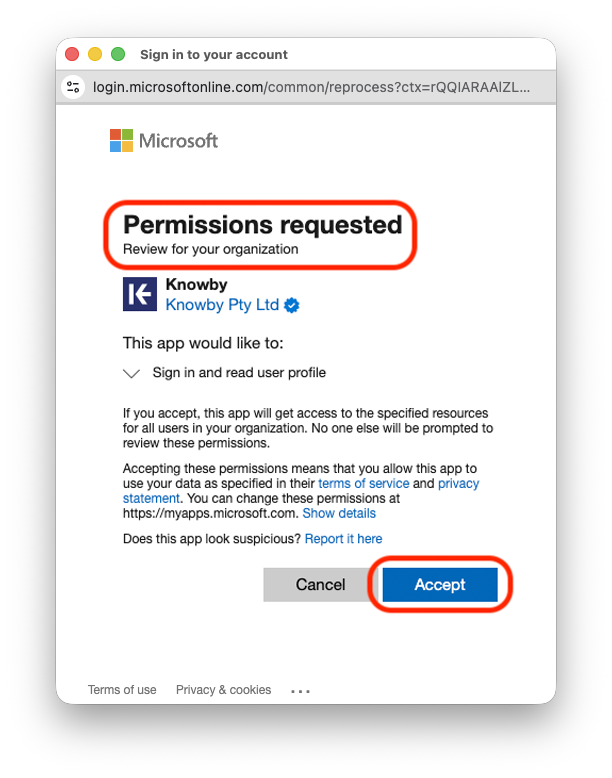
Review: The Admin will see a specialised consent screen.
-
Confirm: Check the box "Consent on behalf of your organisation" and click Accept.
-
Control: After consenting, the Admin can go to the Entra Admin Center > Enterprise Applications to restrict Knowby to specific "Users and Groups" if desired.
Security Note for Admins
Knowby uses the Authorization Code Flow with PKCE—the current industry standard for secure cloud authentication. By using the Admin Consent link above, you are establishing a trust relationship between your tenant and Knowby without needing to manage client secrets or certificates manually.