
Scenario 1: Standard User Consent
Suitable for: Organisations that allow employees to authorise third-party applications from verified developers independently.
-
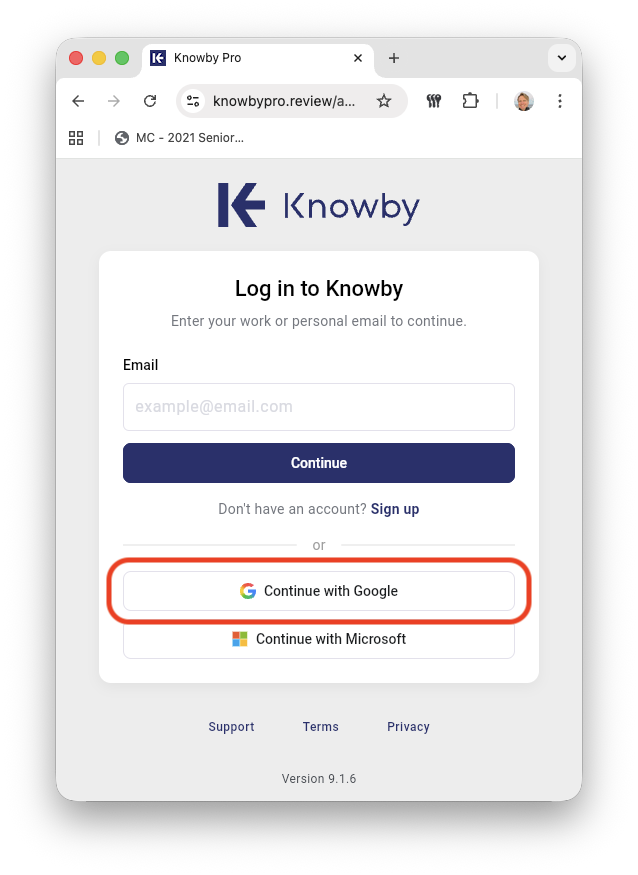
Start the Login: Navigate to the Knowby sign-in page and select "Sign in with Google".
-
Authenticate: Choose your company Google account and enter your credentials.
-
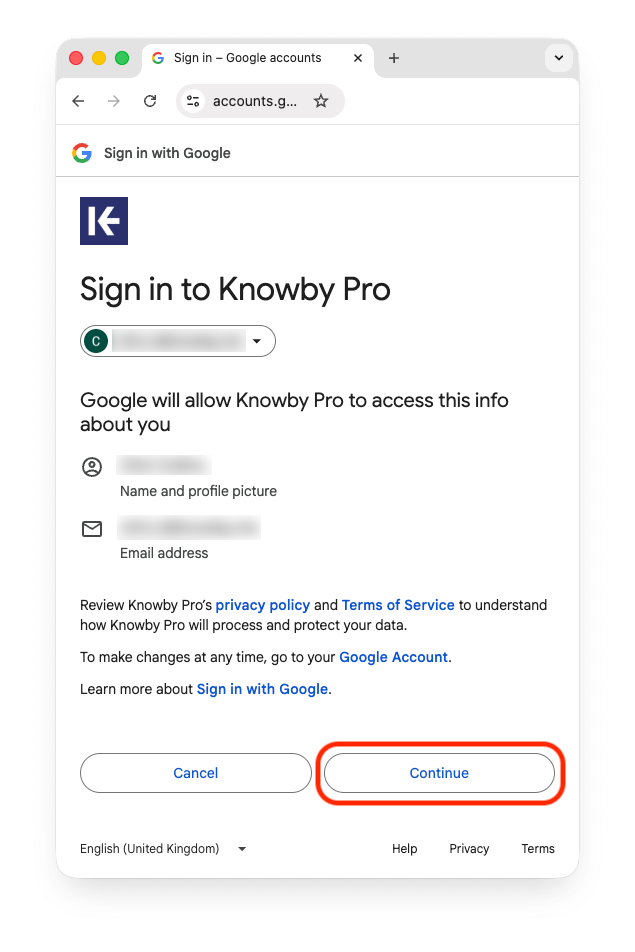
Review the Consent Screen: Because Knowby is a Verified Developer, you will see the Knowby logo and verified branding on the "Sign in with Google" prompt.
-
Allow: Review the requested permissions (e.g., "See your primary Google Account email address"). Click Continue.
-
Success: You are now logged in. Knowby will remember your choice for future sessions.
Scenario 2: Admin-Managed Trust (High Security)
Suitable for: Environments where user consent is disabled or for IT Admins who want to authorise Knowby for the entire organisation at once.
Option A: The "Trusting the App" Workflow (App Access Control)
If users see an "Access Blocked" error, an IT Admin must manually trust Knowby's Client ID.
-
Admin Console: Log in to the Google Admin Console.
-
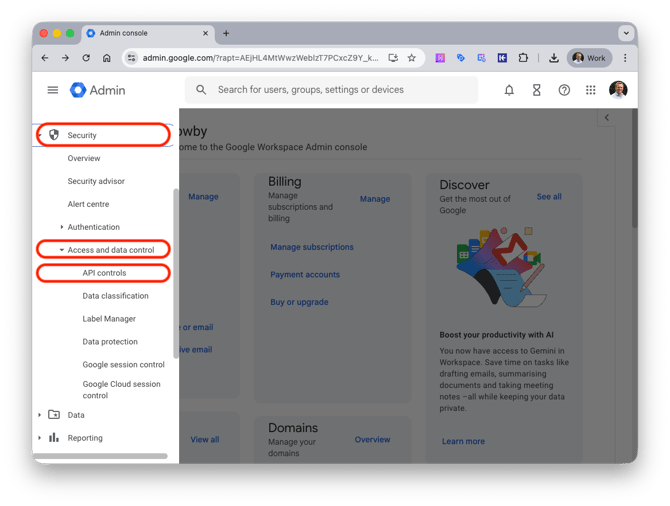
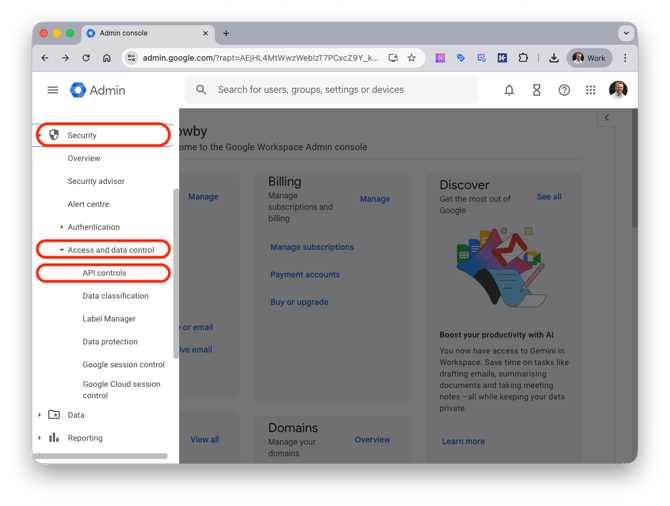
Navigate to API Controls: Go to Security > Access and data control > API controls.
-
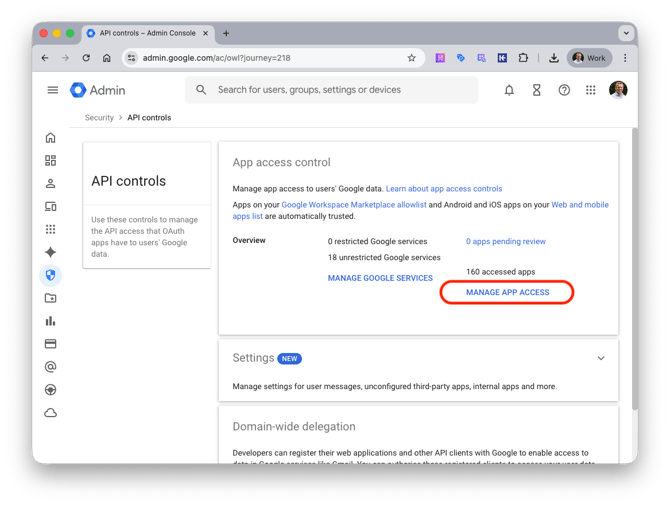
Manage Third-Party App Access: Click Manage App Access.
-
Configure New App: Click Configure new app.
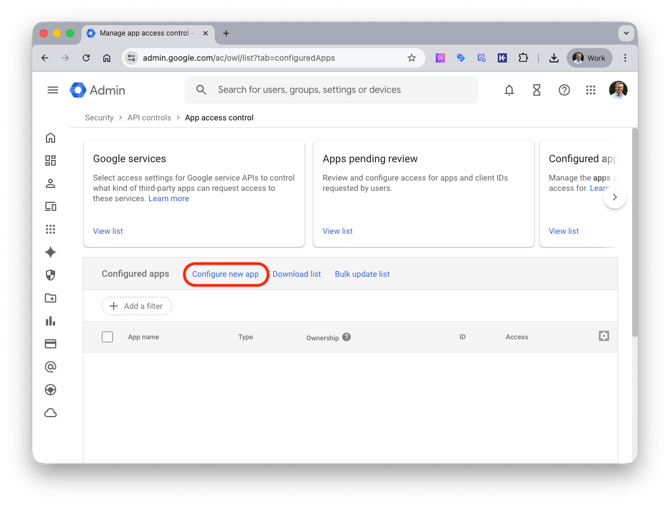
-
Search & Trust: Enter the Knowby Client ID and click Search:
Knowby Client ID:
571132428963-02vkd15tic6gbrpl501ft1vdol3k2d2f.apps.googleusercontent.com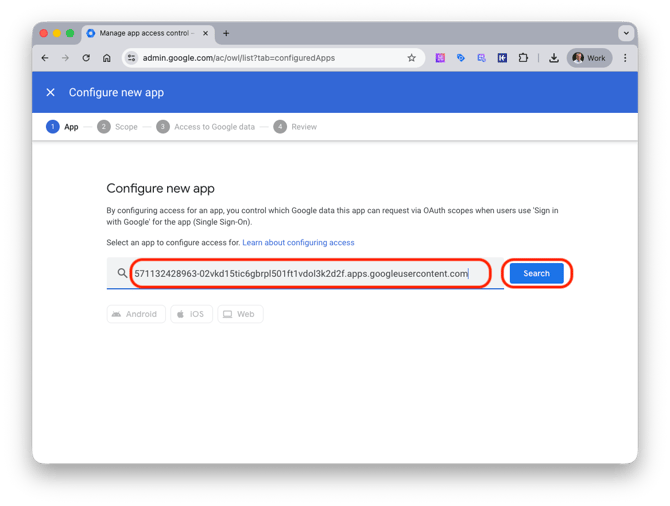
-
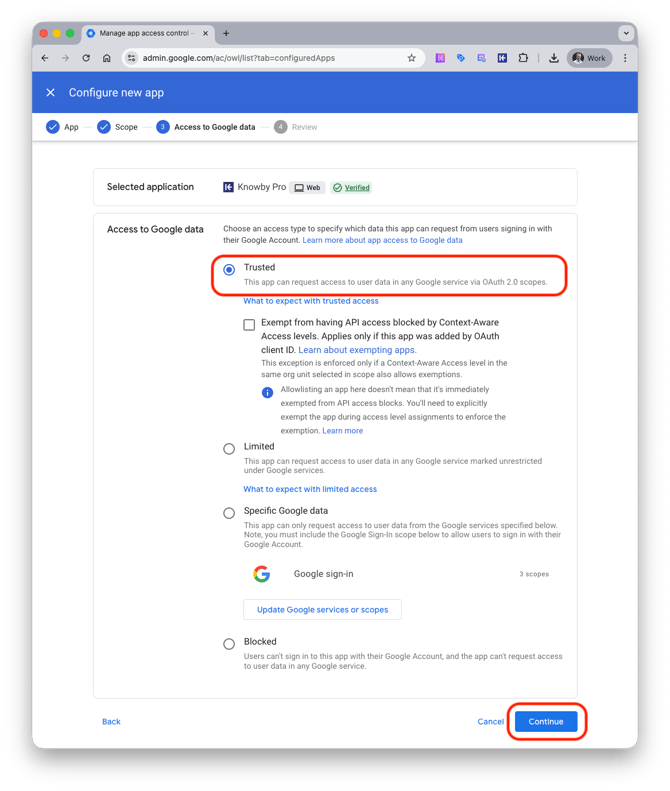
Set Access: Click on the Knowby Pro app.
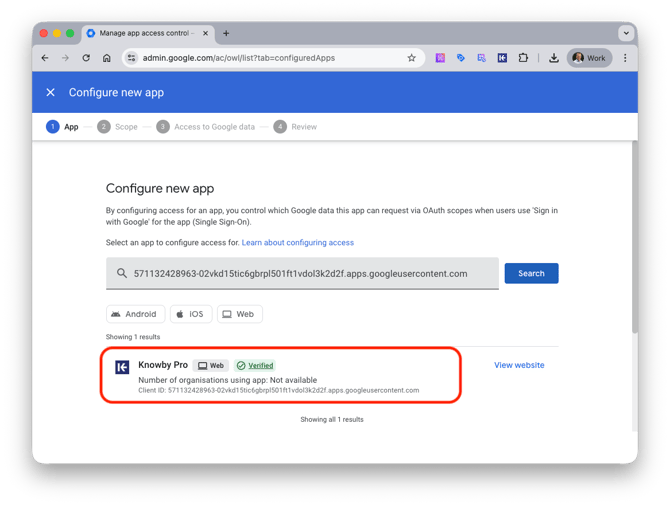
- Set the scope to the desired organisational units then click Continue.
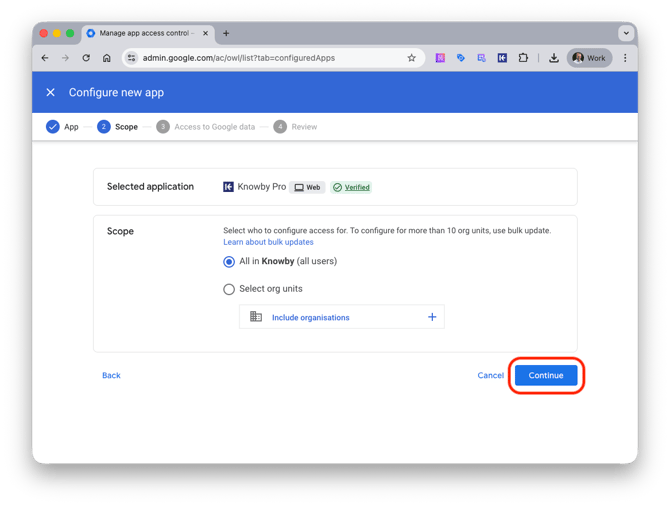
- Choose Trusted then click Continue:
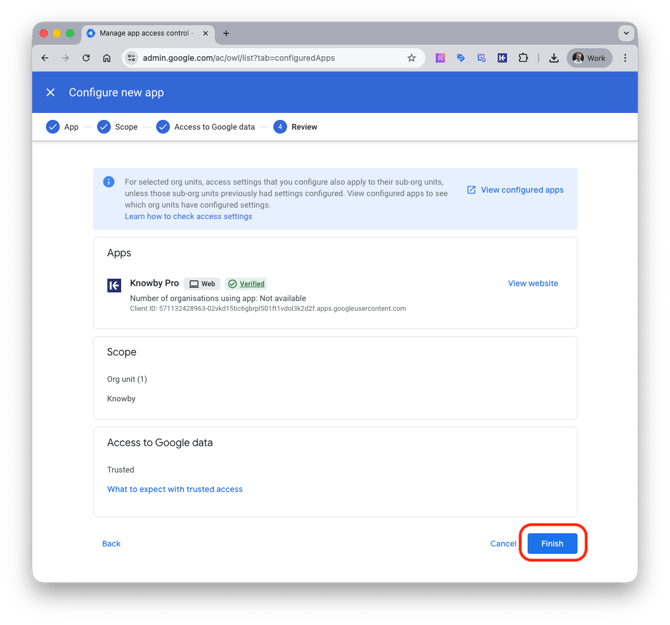
- Review the configuration, then click Finish.
Option B: Proactive Domain-Wide Delegation (Zero-Touch)
Admins can bypass the consent screen entirely for all users by "delegating authority".
-
Manage Delegation: In the Google Admin Console, go to Security > Access and data control > API controls
-
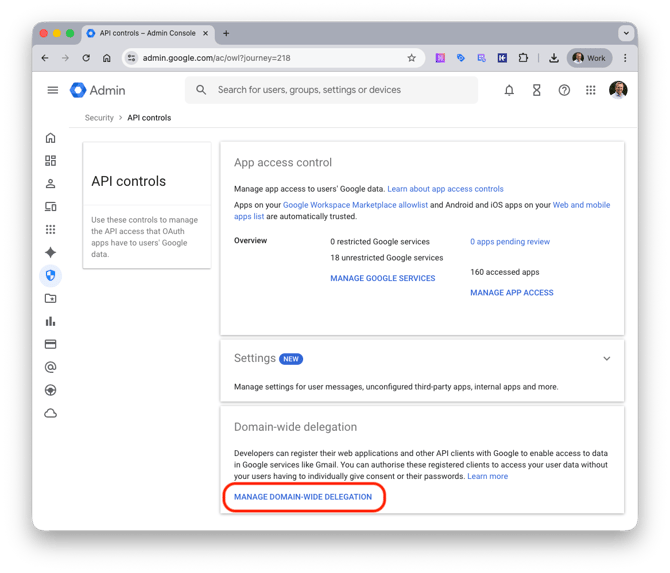
Click Manage Domain Wide Delegation.
-
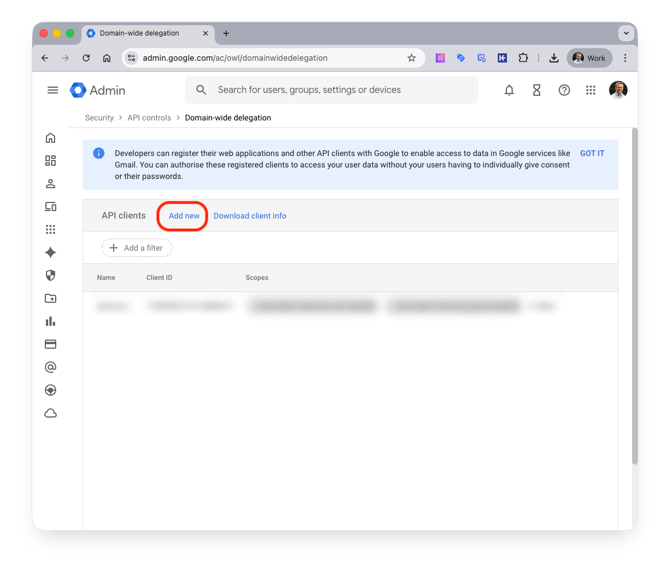
Add New Client: Click Add new
-
Then paste the Knowby Client ID provided below.
Knowby Client ID:
571132428963-02vkd15tic6gbrpl501ft1vdol3k2d2f.apps.googleusercontent.com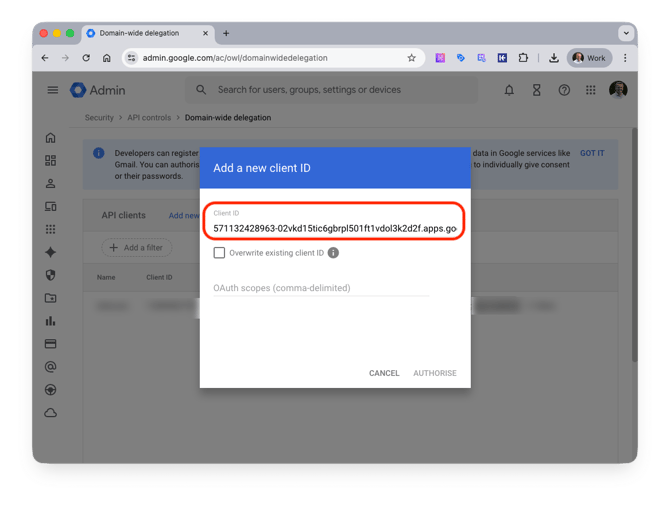
-
Enter Scopes: In the OAuth Scopes field, enter the following:
openidhttps://www.googleapis.com/auth/userinfo.emailhttps://www.googleapis.com/auth/userinfo.profile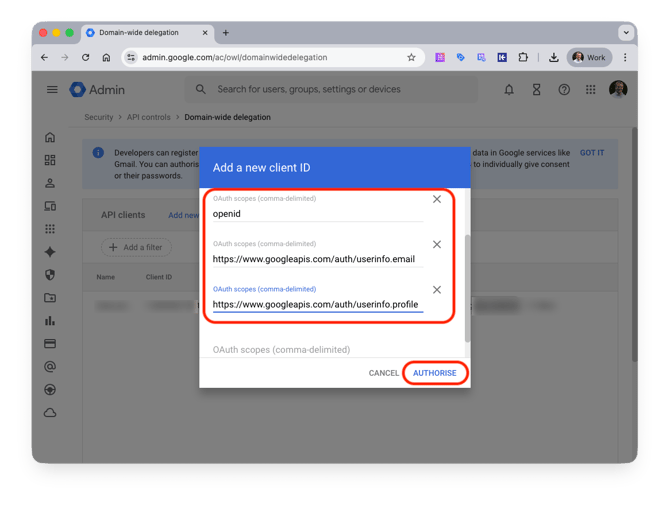
-
Authorise: Click Authorise. All users in your domain can now log in instantly without a consent prompt.
Security Note for Admins
Knowby utilises Google's standard OAuth 2.0 protocol. By trusting the Client ID or using Domain-Wide Delegation, you maintain central control over application access while removing sign-in friction for your team.